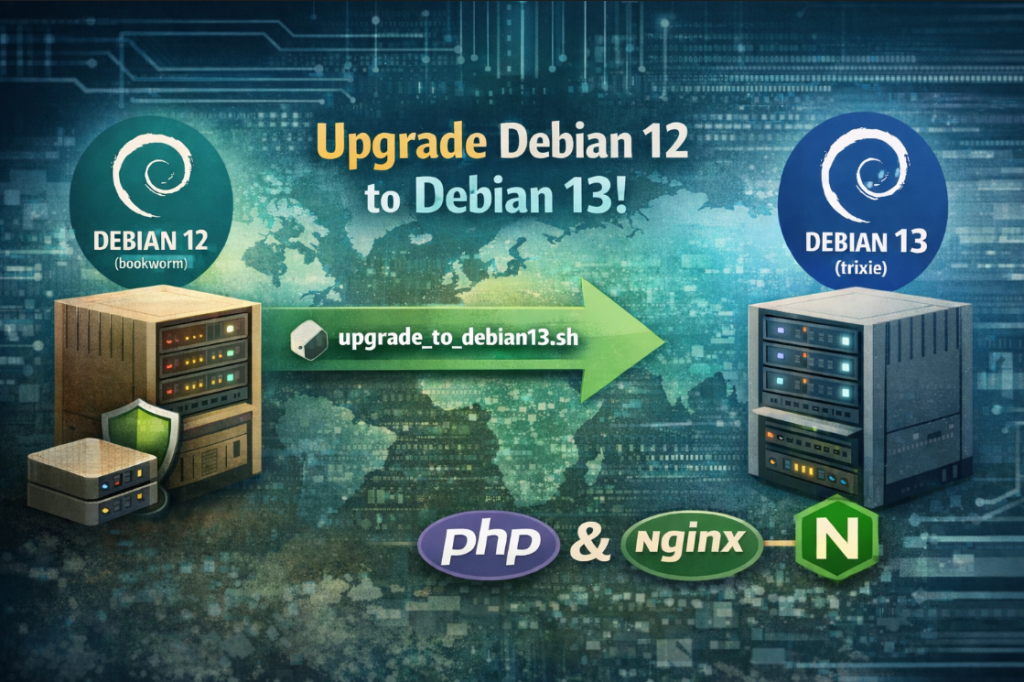
Upgrading Debian from version 12 (bookworm) to 13 (trixie) is an operation that should be performed in a repeatable and predictable way, especially on servers and containers (for example Proxmox LXC or virtual machines). Below you will find a simple guide and ready-to-use commands to download and run the upgrade script.
Before running the upgrade: create a backup or snapshot. In Proxmox, the best option is vzdump or a snapshot. On bare metal, at minimum back up /etc, applications, and databases.
- Proxmox LXC / VM: backup using vzdump or create a snapshot.
- Server: backup /etc, /var/www, databases (MySQL/PostgreSQL), and SSL certificates.
Script download:
https://soban.pl/bash/upgrade_to_debian13.sh
1) Backup before upgrade (examples)
Example backup in Proxmox (run on Proxmox host, replace CTID/VMID):
|
1 |
vzdump 101 --mode snapshot --compress zstd --storage local |
Example simple filesystem backup on a server (this does not replace a full snapshot, but it’s better than nothing):
|
1 |
tar czf /root/backup_before_upgrade.tar.gz /etc /var/www /root |
2) Download the script (wget / curl)
The easiest way is to use wget. If the wget command does not work even though the package is installed, use the full path /usr/bin/wget.
Variant A (standard wget):
|
1 2 3 4 5 |
apt update apt install -y wget cd /root wget -O upgrade_to_debian13.sh https://soban.pl/bash/upgrade_to_debian13.sh chmod +x upgrade_to_debian13.sh |
Variant B (wget with full path – useful if PATH is broken):
|
1 2 3 4 5 |
apt update apt install -y wget cd /root /usr/bin/wget -O upgrade_to_debian13.sh https://soban.pl/bash/upgrade_to_debian13.sh chmod +x upgrade_to_debian13.sh |
Variant C (curl):
|
1 2 3 4 5 |
apt update apt install -y curl cd /root curl -fsSL -o upgrade_to_debian13.sh https://soban.pl/bash/upgrade_to_debian13.sh chmod +x upgrade_to_debian13.sh |
3) Script help (parameters)
Before running the upgrade, display available parameters and usage examples:
|
1 2 |
cd /root ./upgrade_to_debian13.sh --help |
4) Upgrade Debian 12 → Debian 13 (system only)
If you are currently running Debian 12 (bookworm) and want to perform a system upgrade:
|
1 2 |
cd /root ./upgrade_to_debian13.sh |
The script will create a backup of /etc/apt/sources.list, switch repositories to trixie, run apt update and apt full-upgrade, and finally execute autoremove and autoclean.
5) Auto-detect PHP/nginx and update if needed
If the container or VM is running a web stack and you want the script to automatically detect PHP usage (nginx + fastcgi_pass) and upgrade PHP and nginx if necessary:
|
1 2 |
cd /root ./upgrade_to_debian13.sh --auto |
6) Force PHP and nginx upgrade (PHP-FPM socket fix)
If you want to force installation or upgrade of PHP and automatically fix nginx configuration to use the correct PHP-FPM socket:
|
1 2 |
cd /root ./upgrade_to_debian13.sh --with-php --with-nginx --php-version 8.2 |
This command installs PHP 8.2 (php-fpm and common modules) and replaces old PHP-FPM socket paths in nginx configuration with /run/php/php8.2-fpm.sock. Then it runs nginx -t and reloads or restarts services.
7) Already running Debian 13? PHP/nginx only mode
If the system is already running Debian 13 (trixie) and you only want to upgrade PHP and nginx without modifying system repositories:
|
1 2 |
cd /root ./upgrade_to_debian13.sh --php-nginx-only --with-php --with-nginx --php-version 8.2 |
8) Dry-run mode (test mode)
If you want to see what the script will do without making any changes:
|
1 2 |
cd /root ./upgrade_to_debian13.sh --auto --dry-run |
9) Troubleshooting: wget installed but not working
If apt reports wget is installed but the shell shows command not found, it is usually a PATH issue. The easiest workaround is to use the full path: /usr/bin/wget.
|
1 2 3 4 |
echo "$PATH" command -v wget || true ls -l /usr/bin/wget || true /usr/bin/wget --version || true |
Summary
This solution provides a convenient way to upgrade Debian 12 → Debian 13 and optionally fix common PHP/nginx issues after upgrade (PHP-FPM socket paths, nginx config testing, and service restart). Always create a backup before upgrading and start by running --help to review available options.