CrowdSec – Intelligent Linux Server Protection Against Botnets, Brute-Force Attacks and Internet Scanning

If you run a Linux server with Nginx, SSH, or WordPress, you probably already know Fail2Ban. It is a solid tool, but it works locally — it blocks only the IP addresses that attacked your server.

CrowdSec works in a completely different way. It is a protection system based on shared IP reputation. If thousands of servers worldwide detect a malicious IP address, your server can block it before an attack even happens.

How Does CrowdSec Work?

  • analyzes system logs (nginx, ssh, wordpress)
  • detects suspicious behavior
  • shares attacker IP intelligence with other servers
  • blocks traffic at the firewall level

The result? Most bots and internet scanners never even reach your Nginx server.

Installing CrowdSec on Debian / Ubuntu

CrowdSec installation is very simple and available directly from Debian repositories.

During installation, CrowdSec automatically:

  • creates a local API (LAPI)
  • registers the server in CrowdSec Central API
  • downloads default security scenarios

Installing Firewall Bouncer

CrowdSec detects threats, but it requires an enforcement component — called a bouncer — which blocks traffic at the firewall level.

By default, the bouncer uses nftables and automatically adds blocking rules for malicious IP addresses.

Installing Security Collections

Collections include log parsers and attack detection scenarios.

Reload configuration after installation:

Configuring Nginx Logs

To allow CrowdSec to analyze HTTP traffic, you must specify Nginx log files.

Edit the file:

Add the following configuration:

Then restart the service:

Verifying CrowdSec Operation

Service status:

Active bans list:

Operational metrics:

Final Result

After proper CrowdSec installation:

  • the server automatically blocks known botnets
  • WordPress attacks and SSH brute-force attempts are stopped at the firewall
  • Nginx handles significantly less malicious traffic
  • server CPU and IO usage are noticeably reduced

CrowdSec can be considered an evolution of Fail2Ban — a system that not only reacts locally but also benefits from global threat intelligence.

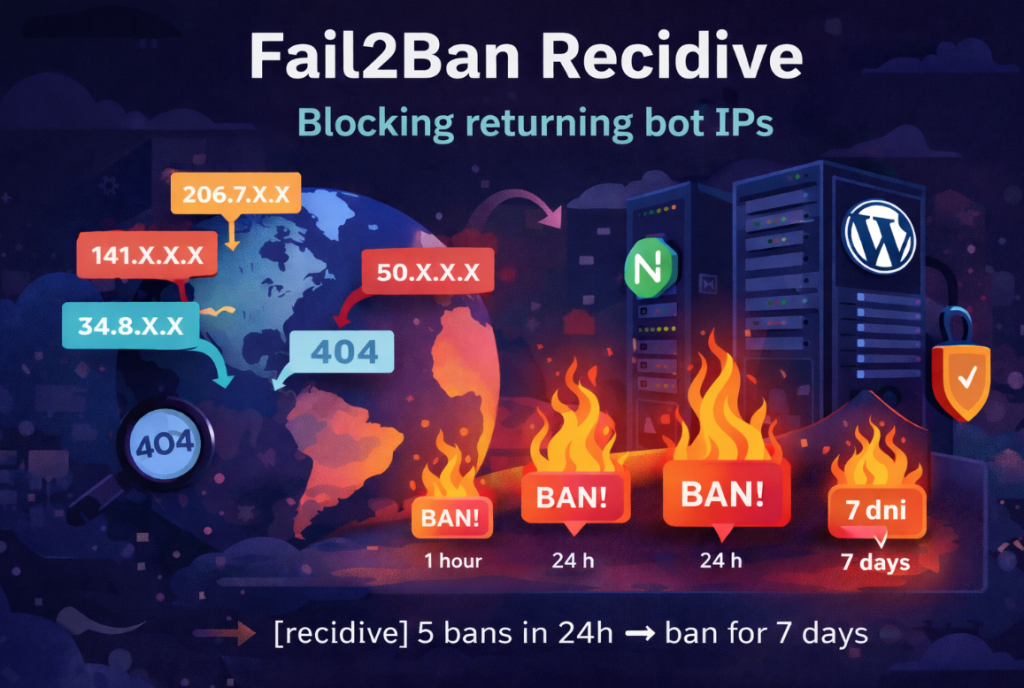
Fail2Ban: How to Detect Repeat Offenders and Ban Them for a Week (Recidive)


If you use Fail2Ban with Nginx and WordPress, sooner or later you’ll notice one thing: the same IP addresses keep coming back. They get banned for a few minutes or an hour, disappear… and shortly after try again /.env, /wp-login.php, /phpmyadmin, or other common attack paths.

The solution is not to aggressively tighten the filters. The solution is recidive — a second layer of protection in Fail2Ban that analyzes the ban history and blocks repeat offenders long-term.

Reference to the previous configuration

If you don’t yet have a basic Fail2Ban configuration for Nginx and WordPress, I described it here:

Fail2Ban + Nginx + WordPress – basic configuration

In that article, we configure jails such as nginx-exploit, nginx-secure, and sshd. Recidive does not replace that configuration — it strengthens it.

How to find repeat offenders in the logs

First, it’s worth checking whether the issue actually exists. We extract from the Fail2Ban logs the list of IP addresses that were banned most frequently:

Example output (addresses partially anonymized):

If you see numbers like 8, 9, or 13 — it means those IPs are coming back after the ban expires. A short bantime is just a technical pause for them.

Why recidive is better than increasing bantime

  • You don’t have to ban everyone for 24 hours because of a single typo in a URL.
  • You don’t increase the risk of blocking legitimate users.
  • The penalty is progressive and applies only to returning addresses.

Recidive analyzes /var/log/fail2ban.log and counts how many times a given IP has been banned by other jails. This way, you only “finish off” those that have already been blocked multiple times before.

Recidive configuration (5 bans in 24h = 7 days ban)

Add the following block to /etc/fail2ban/jail.local:

At the end of the file, paste:

Save the file and restart Fail2Ban:

Check the jail status:

How to check who is close to the recidive threshold

If you want to see IPs that already have several bans and are approaching the recidive threshold:

Summary

Recidive is one of the simplest and most effective ways to limit recurring scanners and bots. Instead of aggressively banning everyone — you block only those who repeatedly come back.

In an environment with multiple domains, Nginx reverse proxy, and WordPress, it’s practically a must-have configuration element: less noise in logs, fewer repeated attacks, and less manual analysis.

Debian 13 (Trixie) → Proxmox VE 9 – Simplified Installation on Pure Debian

Proxmox VE 9 is based on Debian 13 (Trixie) and introduces a newer kernel, updated LXC, QEMU and improved virtualization stack. This guide presents a simplified and automated method to install Proxmox VE 9 on a clean Debian 13 system using two installation scripts.

The method follows the same approach as my previous Proxmox 8 on Debian 12 guide, but adapted for Debian 13 and Proxmox VE 9.

Prerequisites

  • Fresh Debian 13 (Trixie) installation
  • Root access
  • Internet connectivity

All commands must be executed as root.

Part 1 – System Preparation & Proxmox Kernel Installation

Download the first script:

This script:

  • Sets hostname and updates /etc/hosts
  • Installs Proxmox archive keyring (verified via SHA512)
  • Adds Proxmox VE 9 repository for Debian 13
  • Performs full system upgrade
  • Installs proxmox-default-kernel
  • Reboots the system

Content of install-proxmox9-part1.sh

Part 2 – Proxmox VE 9 Installation

After reboot, download and execute:

Content of install-proxmox9-part2.sh

Accessing the Web Interface

After completing the second script, open:

Login with the root user and your root password. You may see a certificate warning — this is normal for fresh installations.

Troubleshooting – 401 Unauthorized (pve-enterprise repository)

If after installation or during apt update you encounter the following error:

This means the enterprise repository is enabled but your system does not have a valid Proxmox subscription. If you are using the no-subscription repository (as shown in this guide), you should disable the enterprise repository.

Fix it by running:

After this, the update should complete successfully:

If everything is correct, you should see:

Conclusion

This method provides a clean and controlled way to deploy Proxmox VE 9 directly on Debian 13 without using the ISO installer. It is especially useful for automated environments, labs, and custom infrastructure setups.

Fail2Ban + Nginx (WordPress-friendly): 5 suspicious requests → 5-minute ban (iptables-nft fix, testing and IP unban)

This guide shows a complete Fail2Ban installation and configuration for Nginx and WordPress, designed to:

  • block scanners and bots (e.g. attempts to access /.env, /.git, phpmyadmin, etc.),
  • avoid blocking the WordPress administrator,
  • ban IP addresses after 5 suspicious or invalid requests,
  • apply only a 5-minute ban (no risk of locking yourself out for long).

Step 1: Install Fail2Ban

Install Fail2Ban:

Enable and start the service:

Verify that it is running:

Step 2: Create the nginx-secure filter

Create the filter file:

Paste the following configuration:

Step 3: Create the nginx-secure jail

Create the jail configuration file:

Paste the following configuration:

Step 4: Restart Fail2Ban

Step 5: Verify firewall integration

Check that the Fail2Ban chain exists:

External test

Run from another machine:

After 5 attempts, the IP address will be banned for 5 minutes.

Check banned IPs

Unban IP address

Unban your IP manually:

Summary

  • protects against scanners and exploit attempts,
  • does not block the WordPress admin panel,
  • uses a short 5-minute ban duration,
  • fully compatible with iptables-nft,
  • easy to test and easy to unban IP addresses.

Automatic upgrade Debian 12 → Debian 13 with optional PHP and nginx update

Debian 12 to Debian 13 upgrade

Upgrading Debian from version 12 (bookworm) to 13 (trixie) is an operation that should be performed in a repeatable and predictable way, especially on servers and containers (for example Proxmox LXC or virtual machines). Below you will find a simple guide and ready-to-use commands to download and run the upgrade script.

Before running the upgrade: create a backup or snapshot. In Proxmox, the best option is vzdump or a snapshot. On bare metal, at minimum back up /etc, applications, and databases.

  • Proxmox LXC / VM: backup using vzdump or create a snapshot.
  • Server: backup /etc, /var/www, databases (MySQL/PostgreSQL), and SSL certificates.

Script download:

https://soban.pl/bash/upgrade_to_debian13.sh

1) Backup before upgrade (examples)

Example backup in Proxmox (run on Proxmox host, replace CTID/VMID):

Example simple filesystem backup on a server (this does not replace a full snapshot, but it’s better than nothing):

2) Download the script (wget / curl)

The easiest way is to use wget. If the wget command does not work even though the package is installed, use the full path /usr/bin/wget.

Variant A (standard wget):

Variant B (wget with full path – useful if PATH is broken):

Variant C (curl):

3) Script help (parameters)

Before running the upgrade, display available parameters and usage examples:

4) Upgrade Debian 12 → Debian 13 (system only)

If you are currently running Debian 12 (bookworm) and want to perform a system upgrade:

The script will create a backup of /etc/apt/sources.list, switch repositories to trixie, run apt update and apt full-upgrade, and finally execute autoremove and autoclean.

5) Auto-detect PHP/nginx and update if needed

If the container or VM is running a web stack and you want the script to automatically detect PHP usage (nginx + fastcgi_pass) and upgrade PHP and nginx if necessary:

6) Force PHP and nginx upgrade (PHP-FPM socket fix)

If you want to force installation or upgrade of PHP and automatically fix nginx configuration to use the correct PHP-FPM socket:

This command installs PHP 8.2 (php-fpm and common modules) and replaces old PHP-FPM socket paths in nginx configuration with /run/php/php8.2-fpm.sock. Then it runs nginx -t and reloads or restarts services.

7) Already running Debian 13? PHP/nginx only mode

If the system is already running Debian 13 (trixie) and you only want to upgrade PHP and nginx without modifying system repositories:

8) Dry-run mode (test mode)

If you want to see what the script will do without making any changes:

9) Troubleshooting: wget installed but not working

If apt reports wget is installed but the shell shows command not found, it is usually a PATH issue. The easiest workaround is to use the full path: /usr/bin/wget.

Summary

This solution provides a convenient way to upgrade Debian 12 → Debian 13 and optionally fix common PHP/nginx issues after upgrade (PHP-FPM socket paths, nginx config testing, and service restart). Always create a backup before upgrading and start by running --help to review available options.

Script: https://soban.pl/bash/upgrade_to_debian13.sh