 Soban
Soban
iftop as a good network traffic monitoring tool
iftop is a command-line tool for real-time network bandwidth monitoring. It displays a continuously updated list of network connections along with the amount of data transferred between them. Connections are shown in a table format and can be sorted by bandwidth usage.
iftop provides various filtering options, allowing you to limit the output to specific hosts, networks, or ports. It supports IPv6 and can display source and destination IP addresses, port numbers, and protocols.
It is particularly useful for monitoring traffic in real time and identifying which services or hosts consume the most bandwidth. It can also help detect network performance issues and assist in troubleshooting.
Overall, iftop is a lightweight yet powerful tool and a valuable addition to any network administrator’s toolkit.
One of the most useful network monitoring tools I use is iftop. It becomes especially helpful when the network link is saturated. In practice, it can also help detect abnormal traffic patterns, including DoS attacks. In the example below, I will transfer a large file to a remote machine with a bandwidth limit and observe the traffic using iftop.
First, install iftop on the local machine (in this case, Kali Linux):
|
1 |
# apt install iftop |
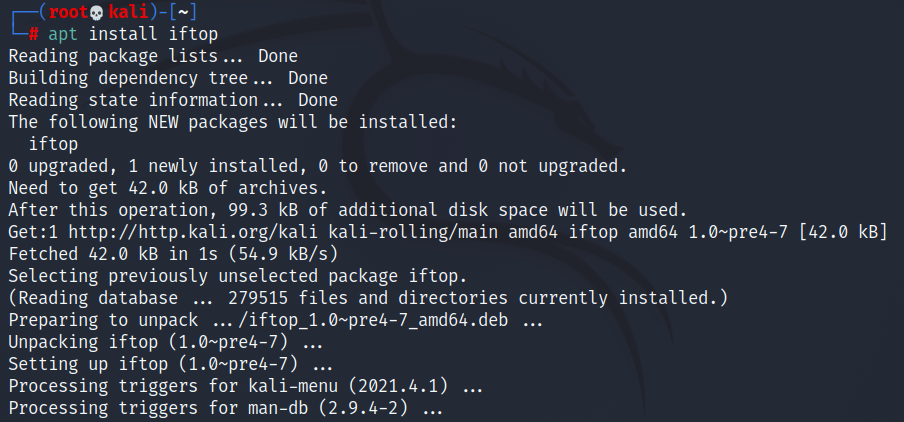
The distribution does not matter — iftop is available in most Linux repositories, including Debian.
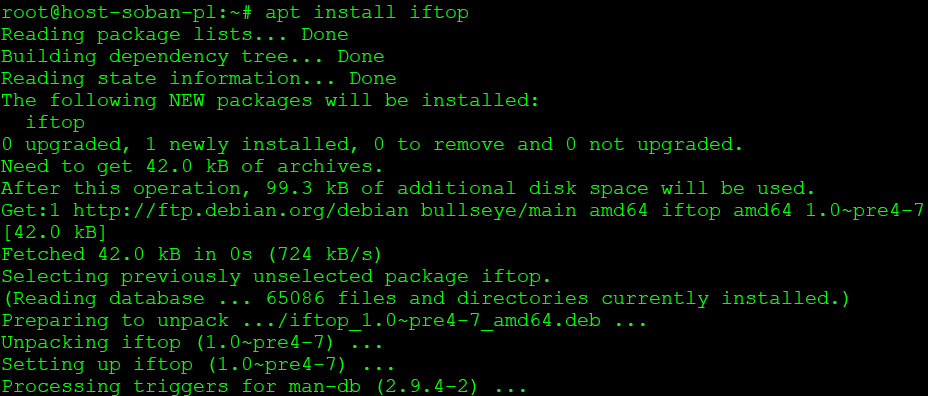
Now install iftop on the remote machine (Debian Linux):
|
1 |
# apt install iftop |
To start monitoring network traffic, run iftop with the parameters -PpNn:
|
1 |
# iftop -PpNn |
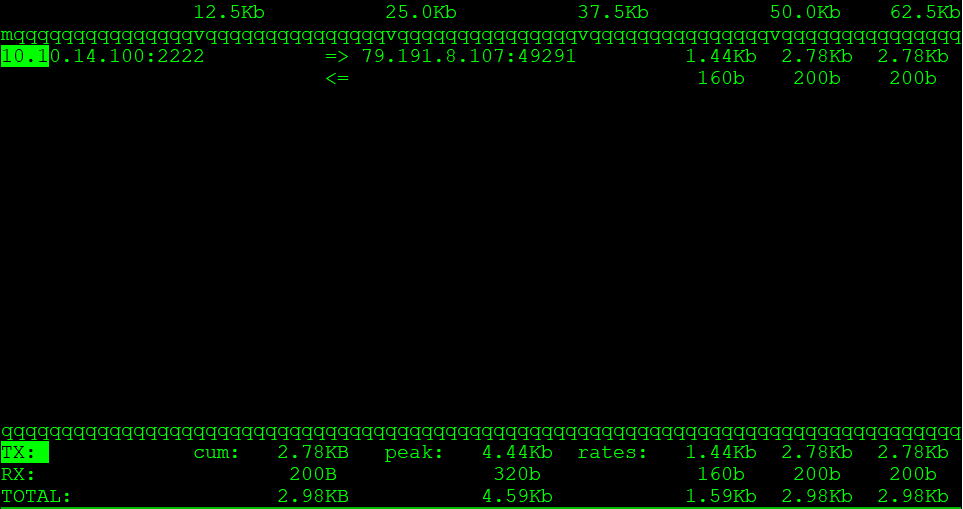
Since I am connected to the remote machine via SSH, I can see my active SSH session in the traffic list.
Now let’s go back to the local machine and create a large file:
|
1 |
# truncate -s 1G 1G-file.txt |
After creating the 1GB file, let’s transfer it to the remote machine with a bandwidth limit:
|
1 |
# scp -l 800 -P2222 1G-file.txt soban@soban.pl:~ |

In this example, the -l 800 option limits the transfer rate to 800 Kbit/s. To convert this to KB/s, divide by 8. That gives approximately 100 KB/s (800 / 8 = 100).
To learn more about scp and secure file transfers over SSH, see: Securely Copy Files (scp) tool for copying files via SSH.
When sending the file, the traffic on the local machine (outgoing traffic) looks like this:
|
1 |
# iftop -PpNn |
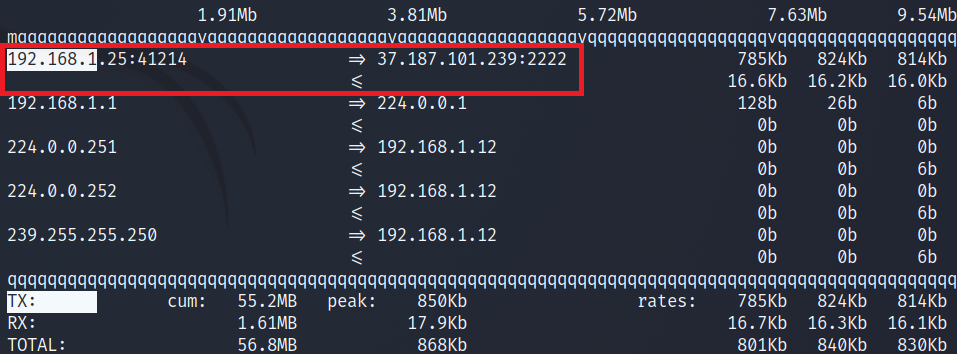
At the same time, on the remote machine (incoming traffic) it looks like this:
|
1 |
# iftop -PpNn |
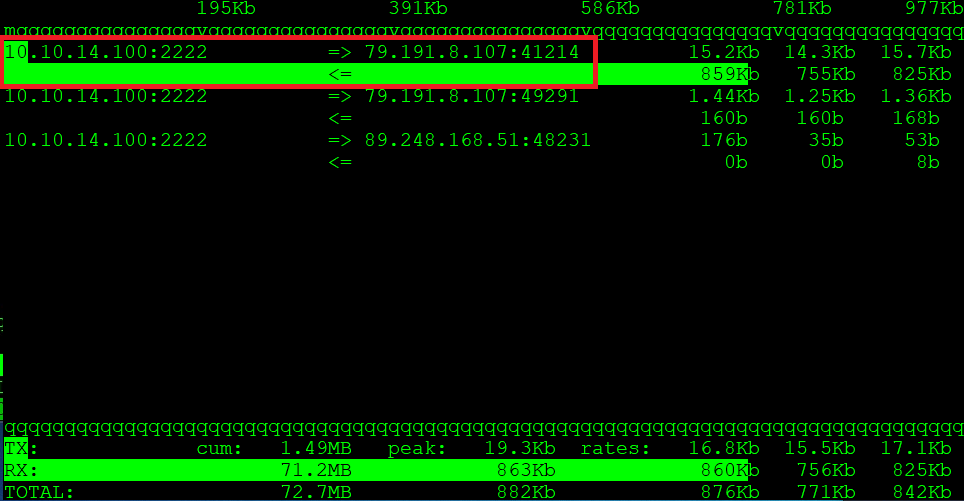
As you can see, this approach allows you to observe both outgoing and incoming traffic in real time. Although iftop is simple, it provides powerful visibility into live network activity.
During brute-force attempts, you will usually observe many short-lived connections. In contrast, a DoS attack aims to saturate the bandwidth, which results in high incoming traffic. However, there are situations where traffic spikes are legitimate. In such cases, you may consider limiting connection speed — tools like iptables can help manage that effectively.